Product Guides
How Neuro Works — The Complete Guide to How the Owner Dashboard Works for Growth Automation
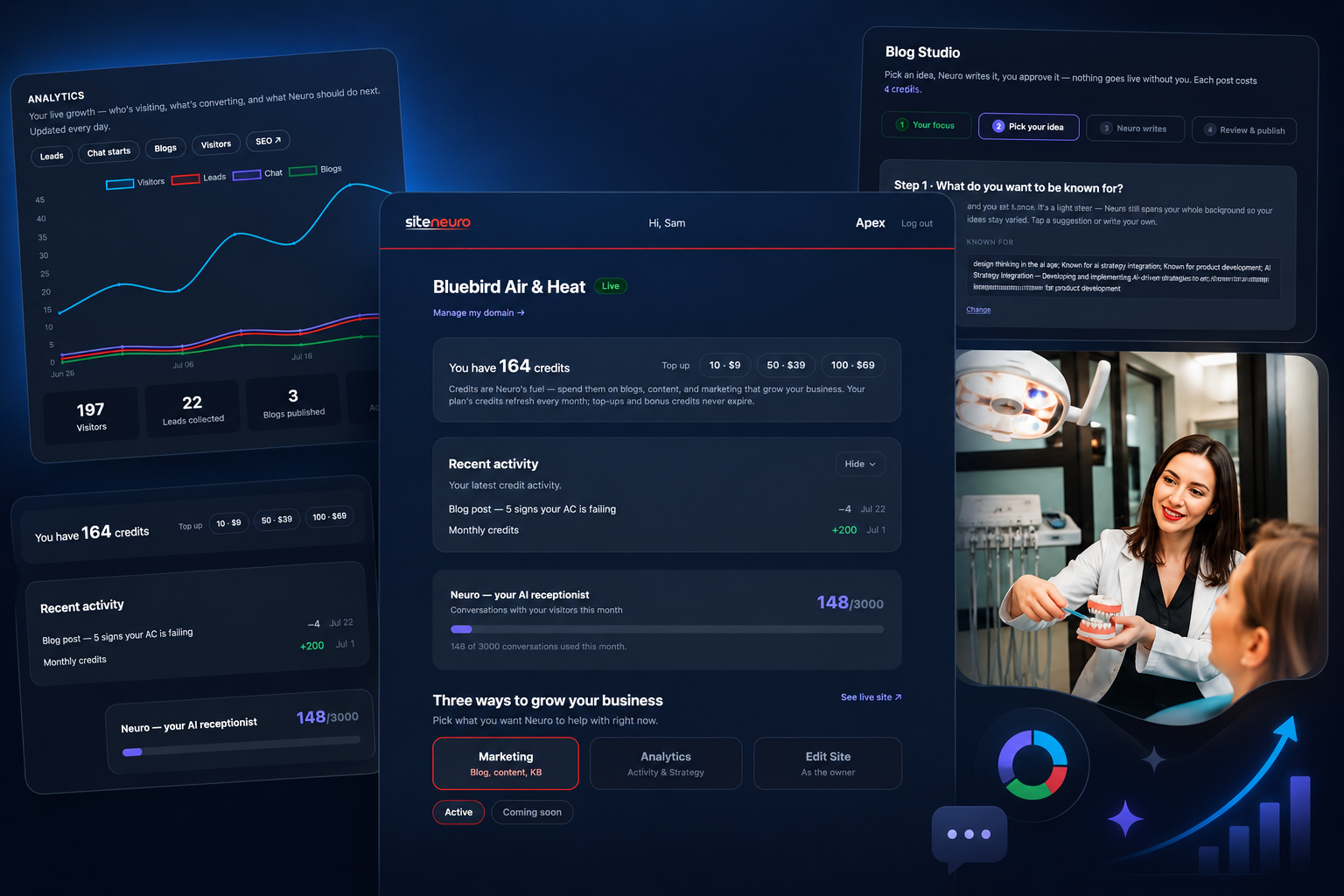
Read this once, right after you subscribe. Twenty minutes spent understanding how your dashboard is wired pays for itself many times over — it's the difference between poking at buttons for months and putting your growth on autopilot from day one.
You built your site in a minute by entering your basic information.
You connected your domain using the Neuro domain guidance.
Now it's time to set up Neuro, let it get to work, and put growth on auto-pilot.
Signed up as a professional or personal brand instead of a local business? This guide covers the Local Business dashboard.
See the Professional dashboard guide — Content & Insights, LinkedIn-style Momentum, and the other parts of your dashboard that work differently for a personal brand.
How long will this take?
- Reading this guide: under 10 minutes.
- Setting Neuro up: about half an hour, following the guide below.
- After that: a few minutes once a week to check progress and schedule what's next.
What am I looking at? The dashboard's main architecture
Two numbers sit at the top of every dashboard, and everything else lives under three tabs.
- Credits. Neuro runs on credits — every tier has a monthly allowance. This tile shows your current balance and lets you top up when you need more marketing actions than your plan includes.
- Recent activity. A running log of exactly which action spent which credits, so nothing you're billed for is a mystery.
- Console tabs. Three tabs hold everything you do in Neuro: Marketing, Analytics & Strategy, and Edit Site.
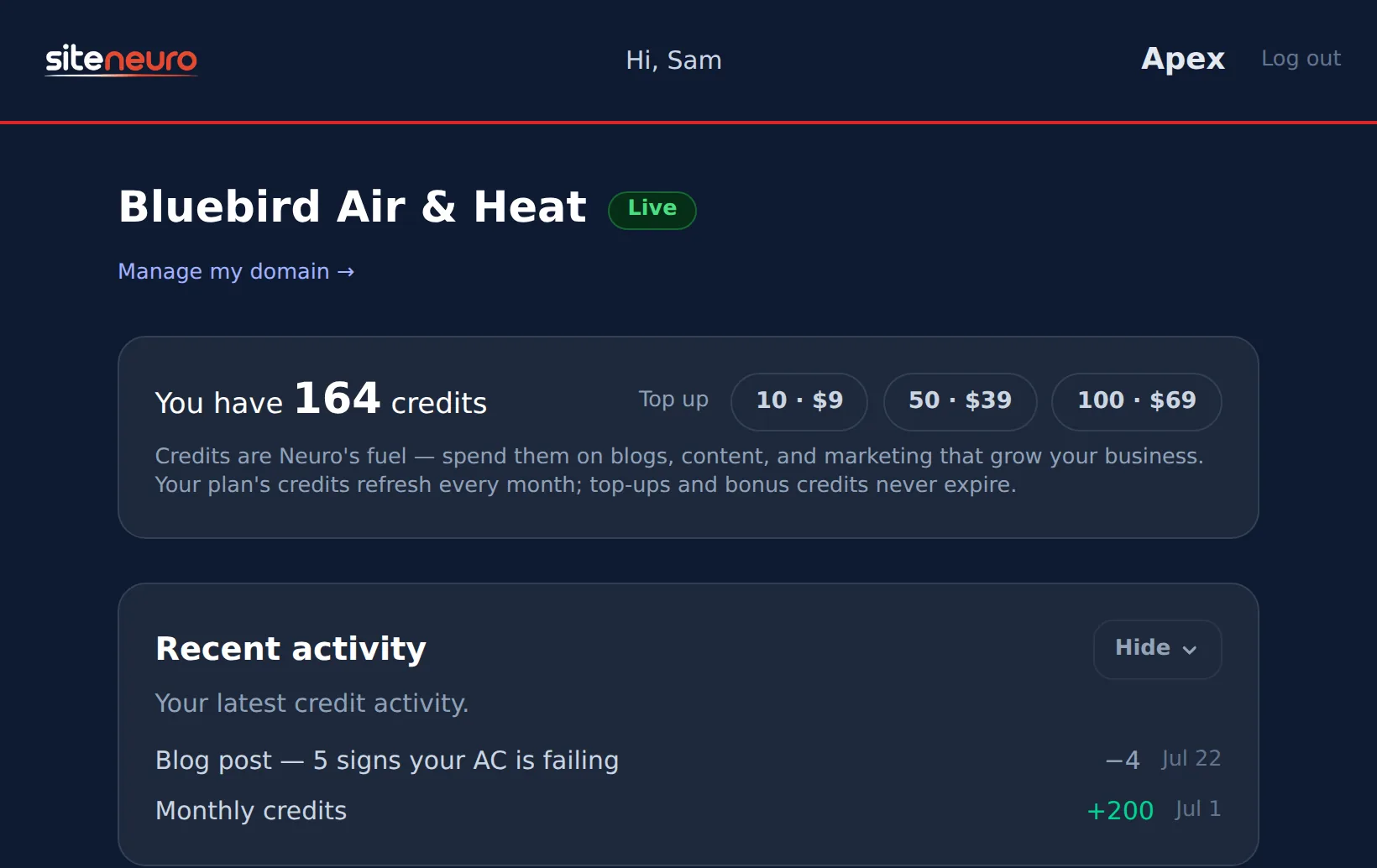
Below is the map of what lives in each tab. After the map, we go feature by feature.
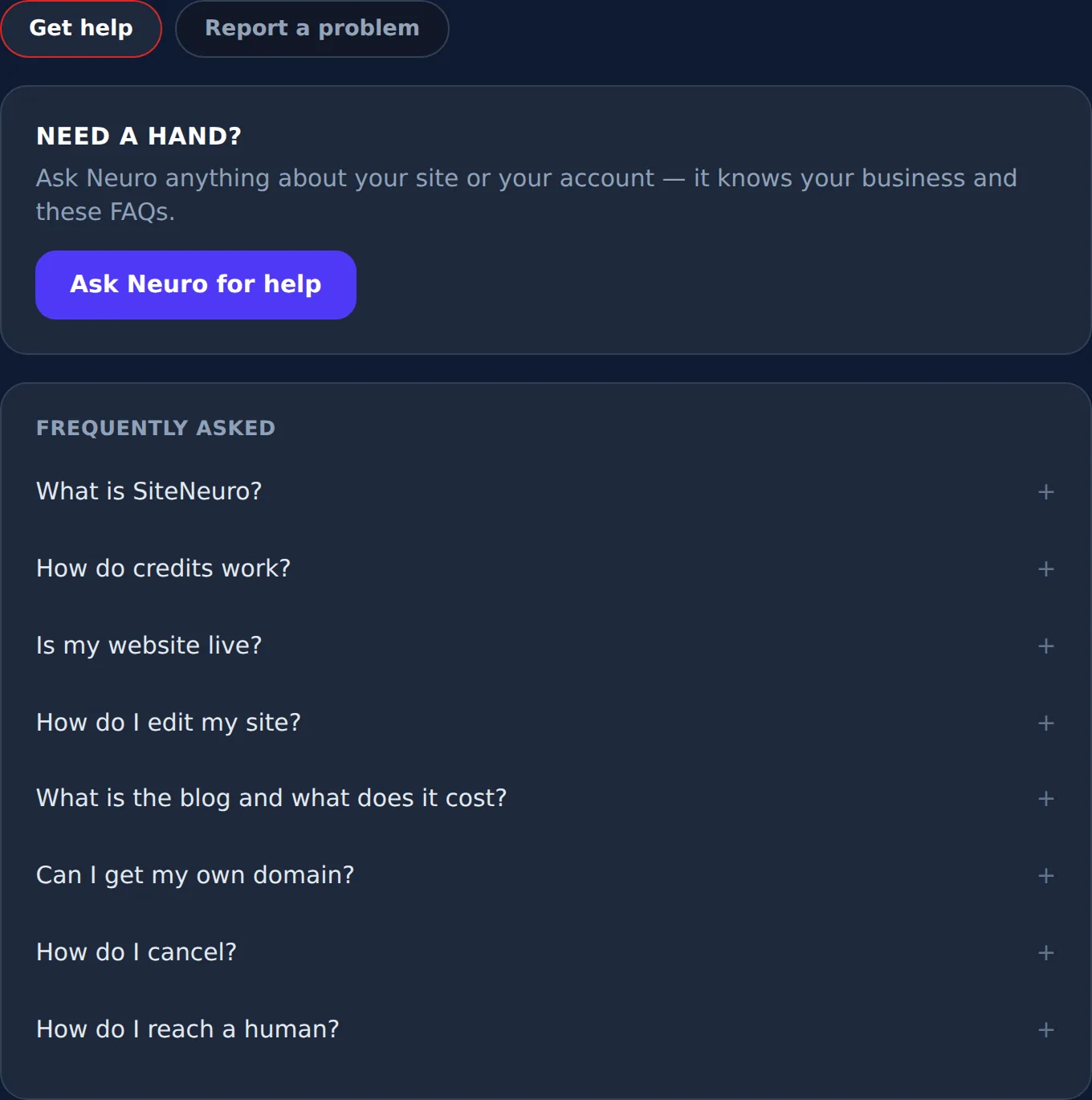
Marketing tab: Momentum, Manage Your Content (Blog & Social), Google & AI Search, NeuroConnect email, NeuroReply. Analytics & Strategy tab: the Analytics chart, your Growth Brief, and the Growth Playbook. Edit Site tab: open your site to edit, your logo, and the Appearance deep-links to your colour theme. Bottom tools: Knowledge Base, FAQ, Refer & Earn, Account, Help, Domain Setup.
Not sure where to start on a given week? Here's what to ask Neuro when you don't know what to do next.
What's in the Marketing tab?
Momentum
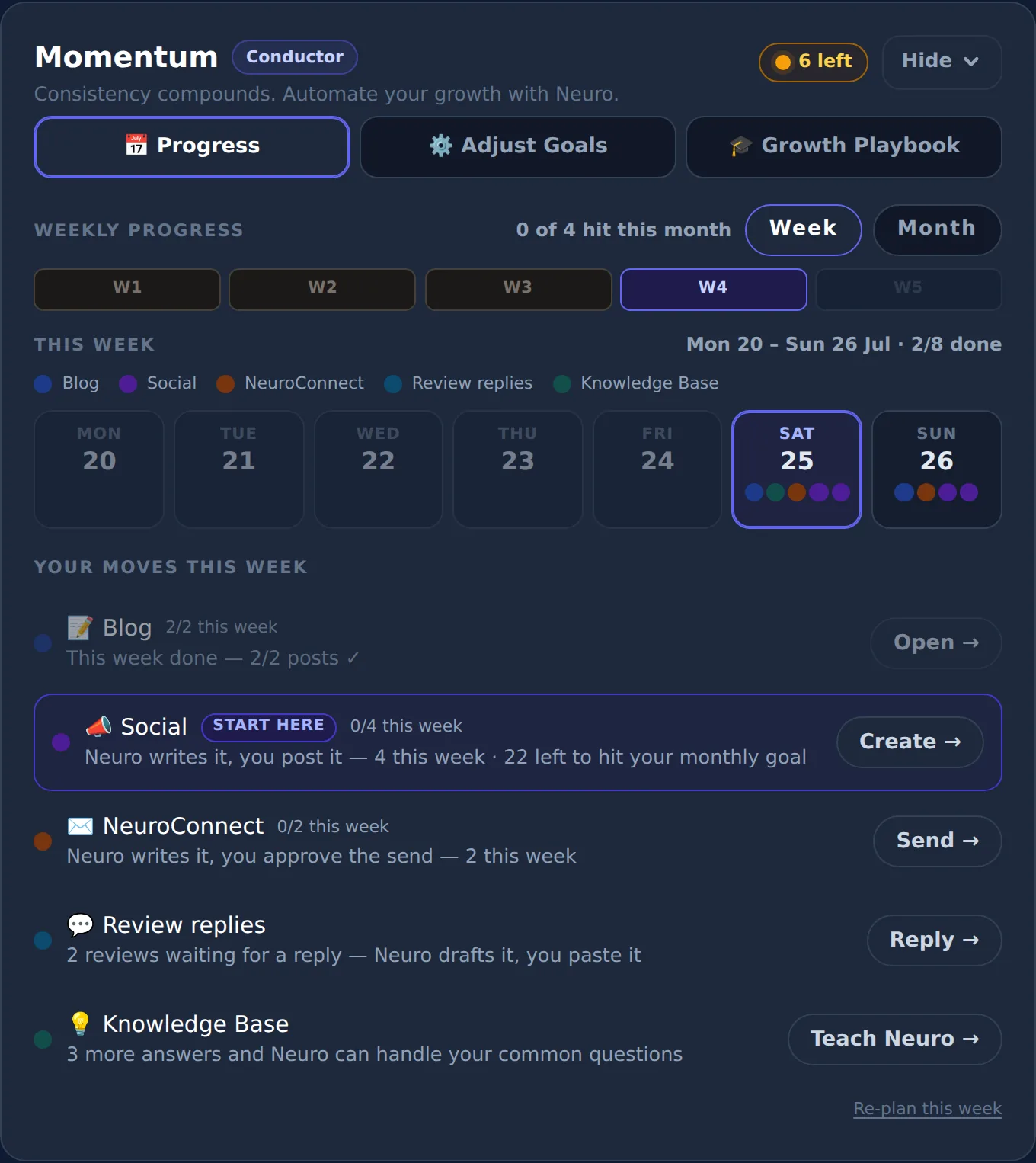
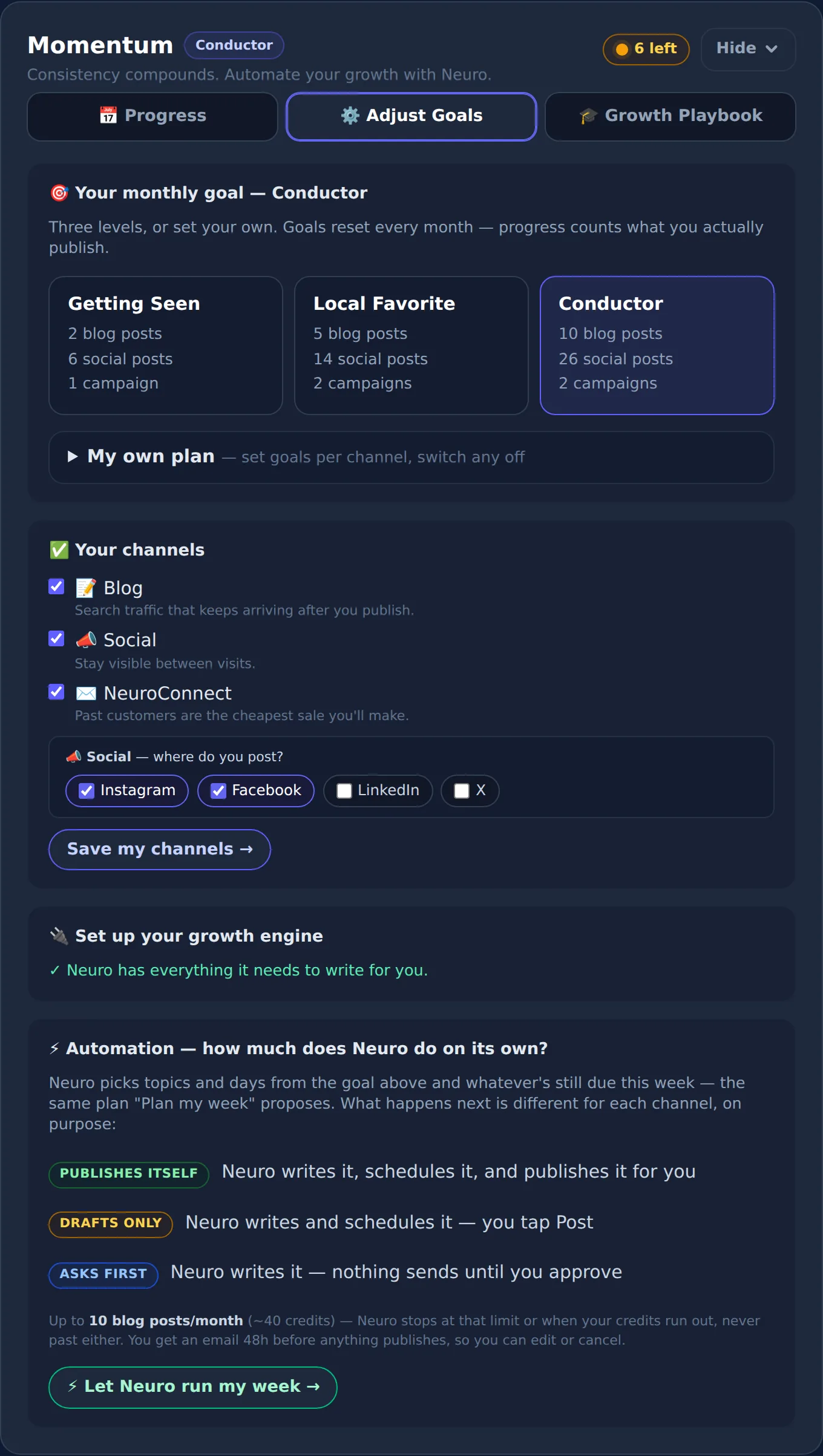
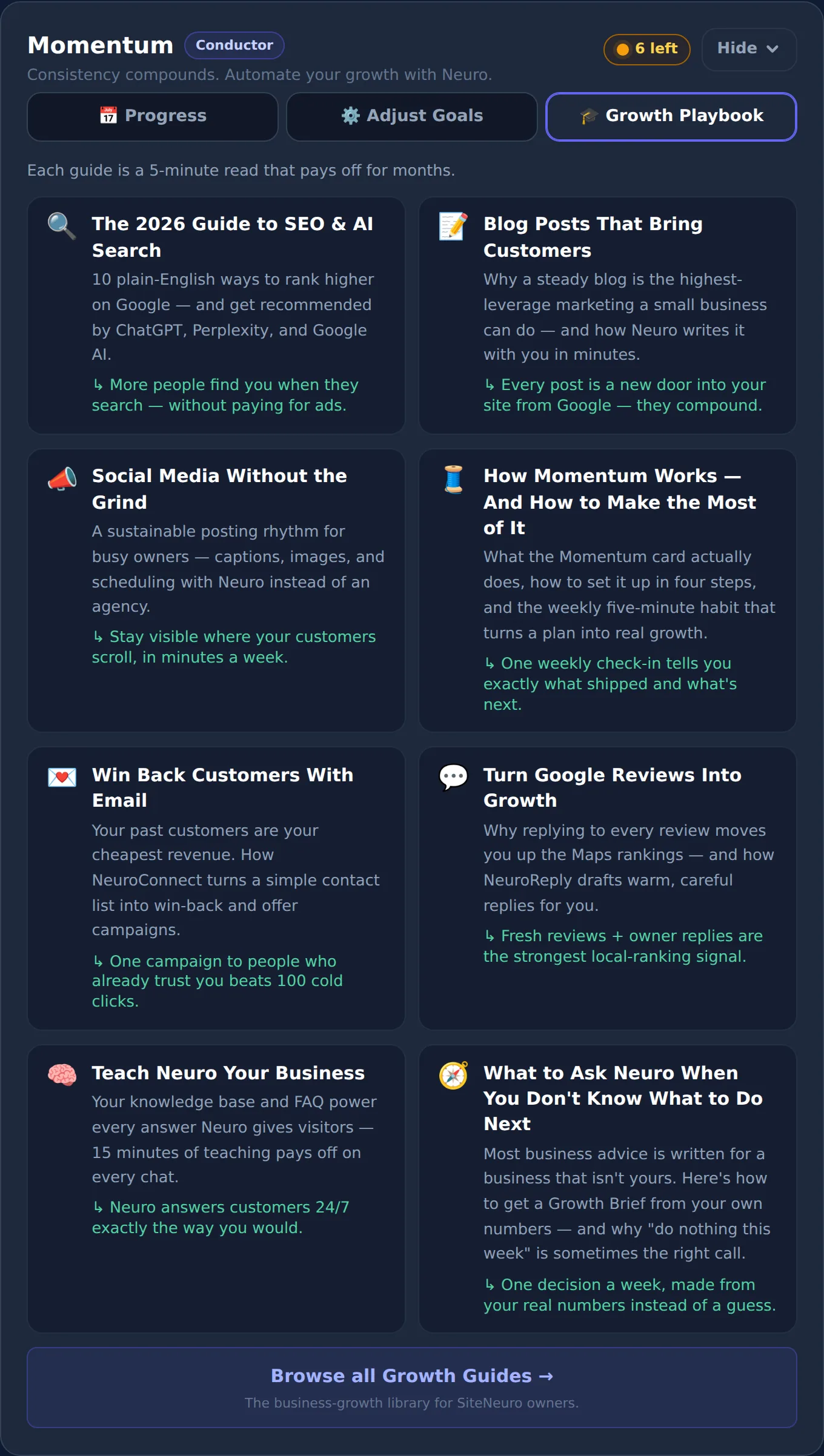
Momentum is your month at a glance, and it has three tabs — Progress, Adjust Goals, and Growth Playbook — so tracking what shipped never gets in the way of changing your plan.
Your growth partner
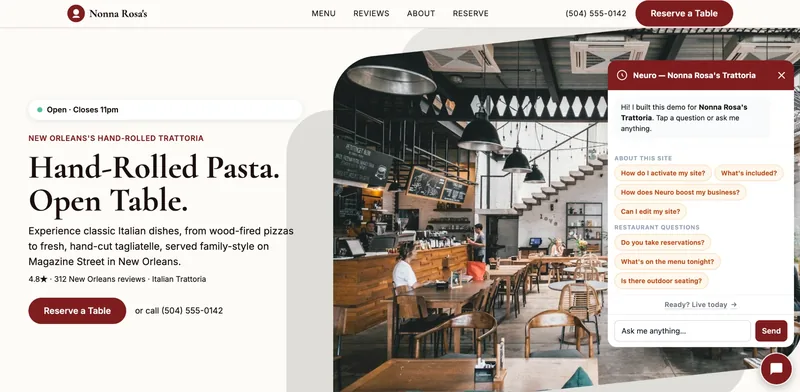
A website is the start. Neuro keeps it working.
- Built from your Google or LinkedIn
- Answers visitors, captures leads
- Drafts blog, social and newsletter
- Nothing goes out until you approve it
Rated Excellent on TrustpilotGlobal review platform · 300M+ reviews

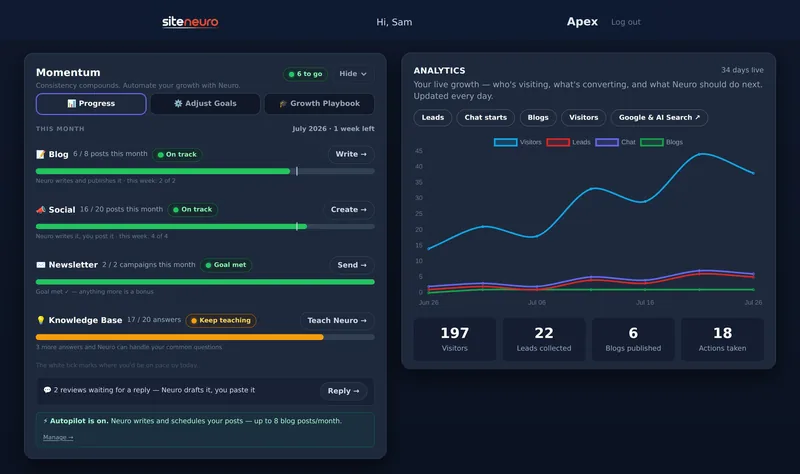
Why it matters: growth compounds when it's a steady habit, not a scramble. Momentum turns "grow the business" into a short weekly checklist.
How it works:
- Adjust Goals — start from the recommended monthly goals for your plan, change any number (0 switches a channel off), and choose how much Neuro automates: publishes itself, drafts only, or asks first.
- Progress — one bar per channel tracks what's actually published this month, not just drafted, coloured green, amber or red by whether you're on pace.
- Growth Playbook — a one-minute explainer for each channel, plus the guide library described below.
- Jump into Adjust Goals any time to change a goal, or reset to the recommended numbers.
Manage Your Content — Blog & Social
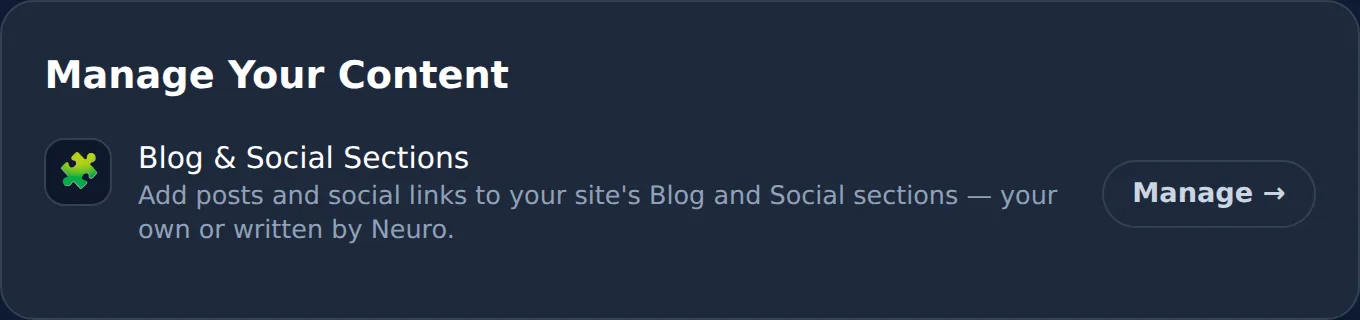
One card handles both your Blog and Social sections — add posts yourself, or hand them to Neuro.
Why it matters: every post is a new door into your site from Google, and social keeps you visible between visits — without hiring an agency.
How it works:
- Click Manage to open your content page — Blog & Articles and Social Media, side by side.
- Add your own — a manual form for a title, link, and image, published instantly.
- ✨ Ask Neuro to create — the Blog button hands off to the Blog Studio, where Neuro drafts a full SEO-ready article grounded in your real business facts for you to review and edit before it publishes.
- Your site shows up to 6 posts per section — post as many as you like, then pick which 6 are live and in what order. Hiding a section never deletes anything.
Google & AI Search
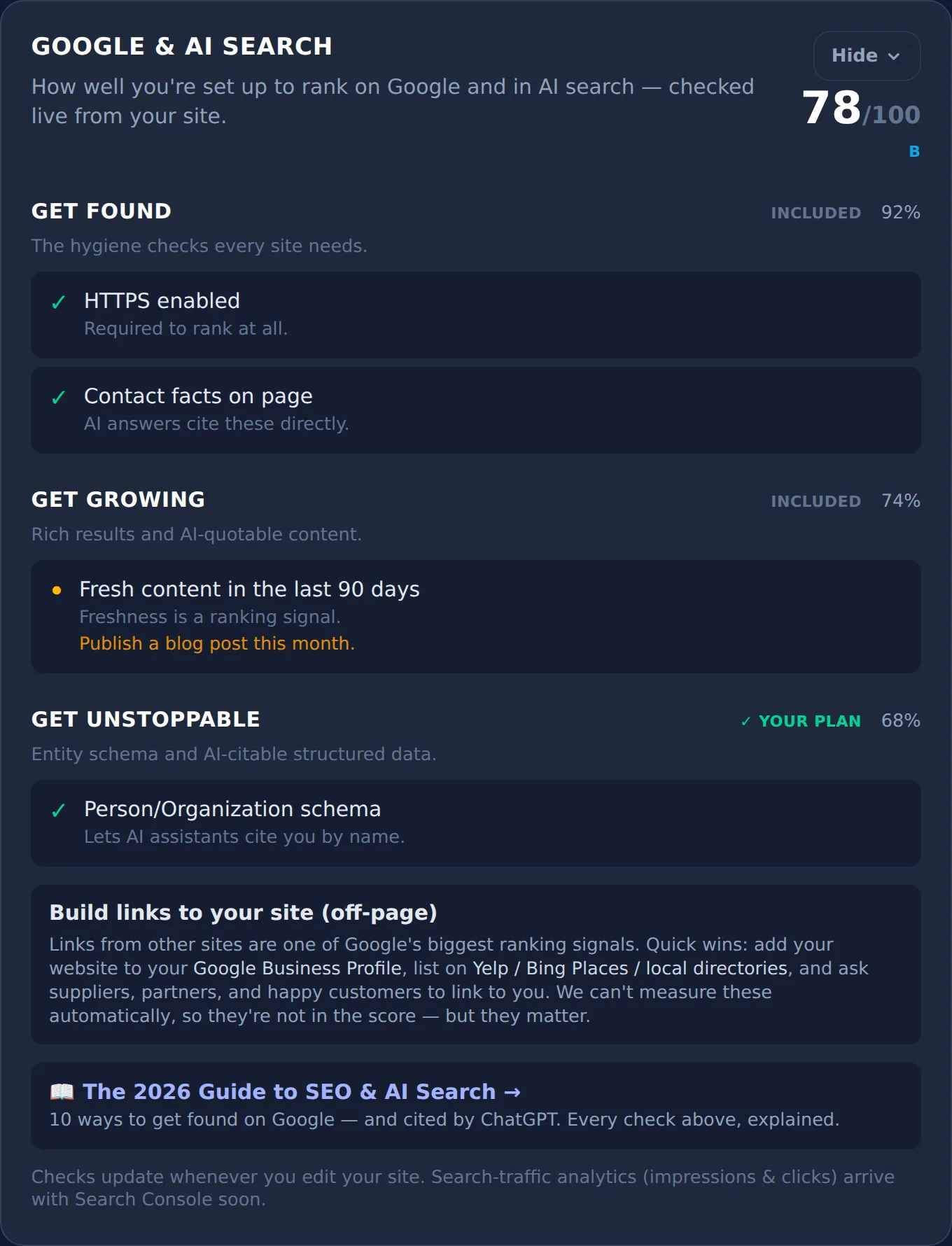
Every Neuro site ships with SEO and AI-search implementation already in place — this card shows exactly where you stand, tiered by plan.
Why it matters: this is the same engine that used to live under Analytics — it now sits with the rest of Marketing, right next to the content moves that raise the score.
How it works:
- Open the card to see your overall score and grade.
- Read the "why" and "how to fix" notes under anything not yet passing.
- Off-page tips (Google Business Profile, directories, backlinks) sit below the score — we can't measure those automatically, but they matter.
Email newsletter with NeuroConnect
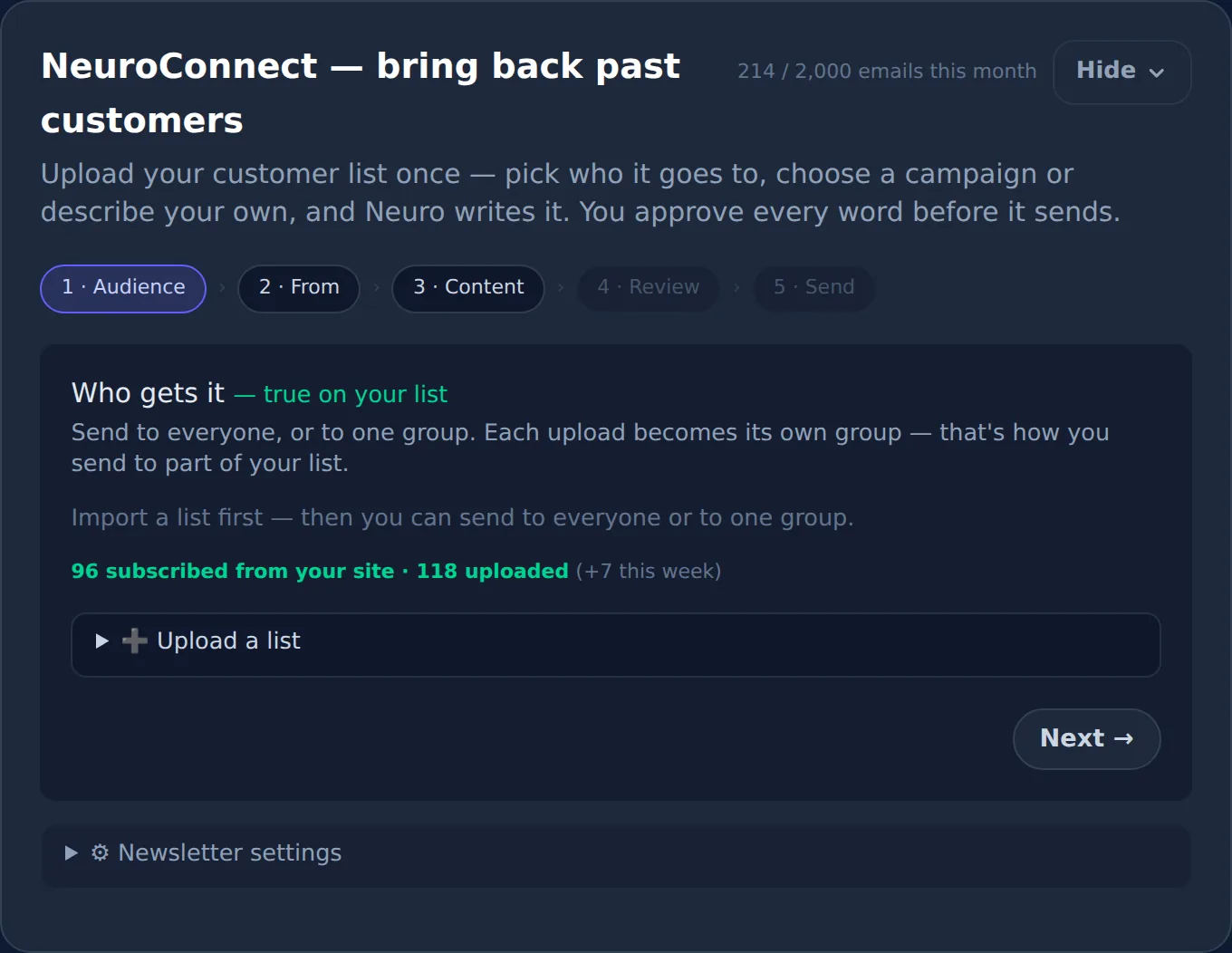
NeuroConnect sends newsletters and campaigns to your customers or followers, growing your business through offers or your own in-depth insight.
Why it matters: your past customers are your cheapest revenue — one email to people who already trust you beats a hundred cold clicks.
How it works:
- Upload or import your contact list (or add contacts by hand).
- Choose a campaign type — newsletter, offer, win-back, or a review-request nudge.
- Neuro drafts the copy, grounded in your real business details.
- Review, edit, and approve.
- Send within your monthly quota — Neuro tracks delivery and opens.
NeuroReply
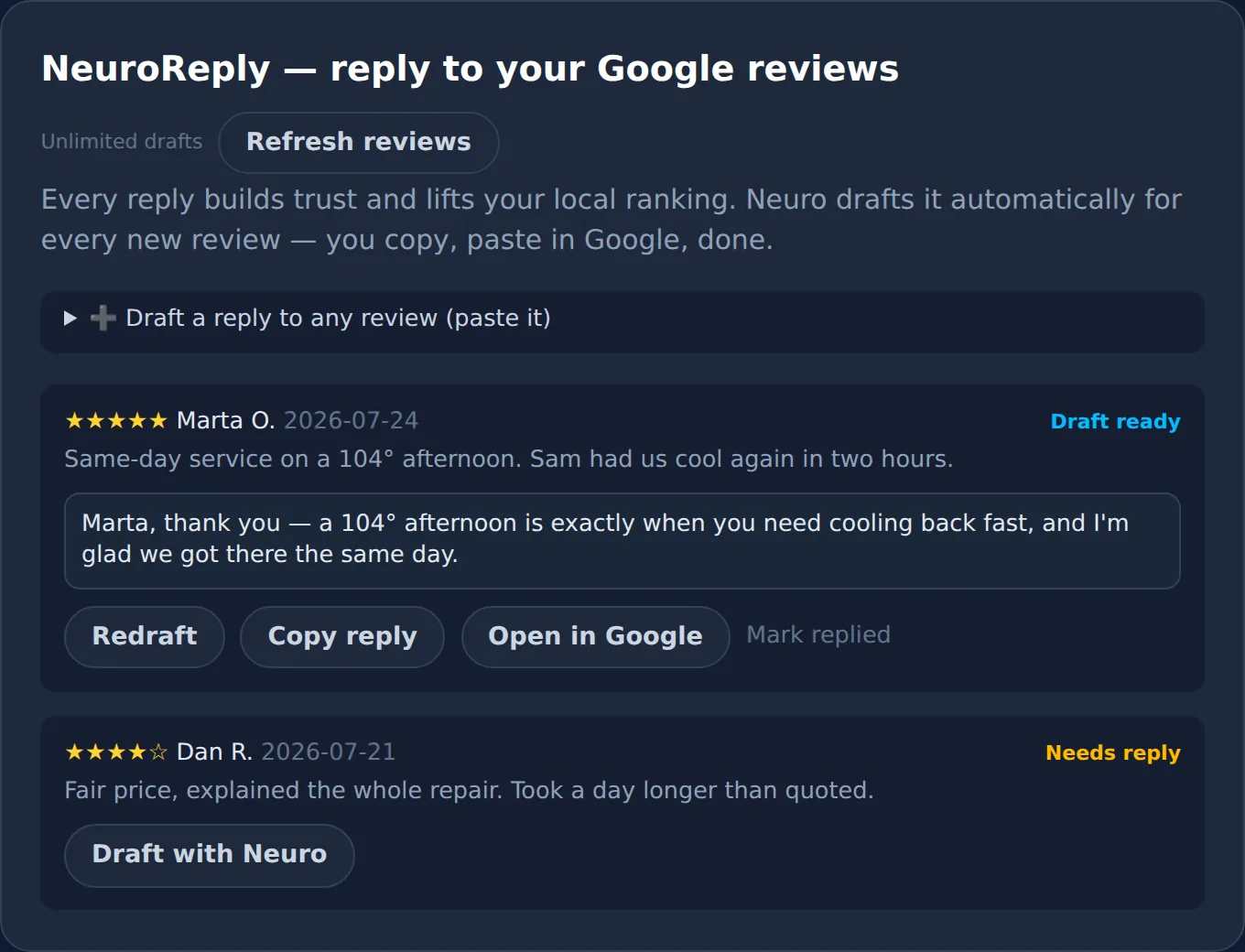
Google Maps review replies can meaningfully move a business — NeuroReply drafts a warm, careful reply to every review for you. This one is local-only — professionals with no Google Business reviews won't see this card.
Why it matters: fresh reviews plus owner replies are one of the strongest local-ranking signals you control.
How it works:
- Neuro pulls in new Google reviews automatically.
- It drafts a reply for each one, softening tone automatically on lower ratings.
- You review and edit the draft.
- Copy, paste, and post — or let Apex auto-draft the week's replies for you.
What's in the Analytics & Strategy tab?
The Analytics chart
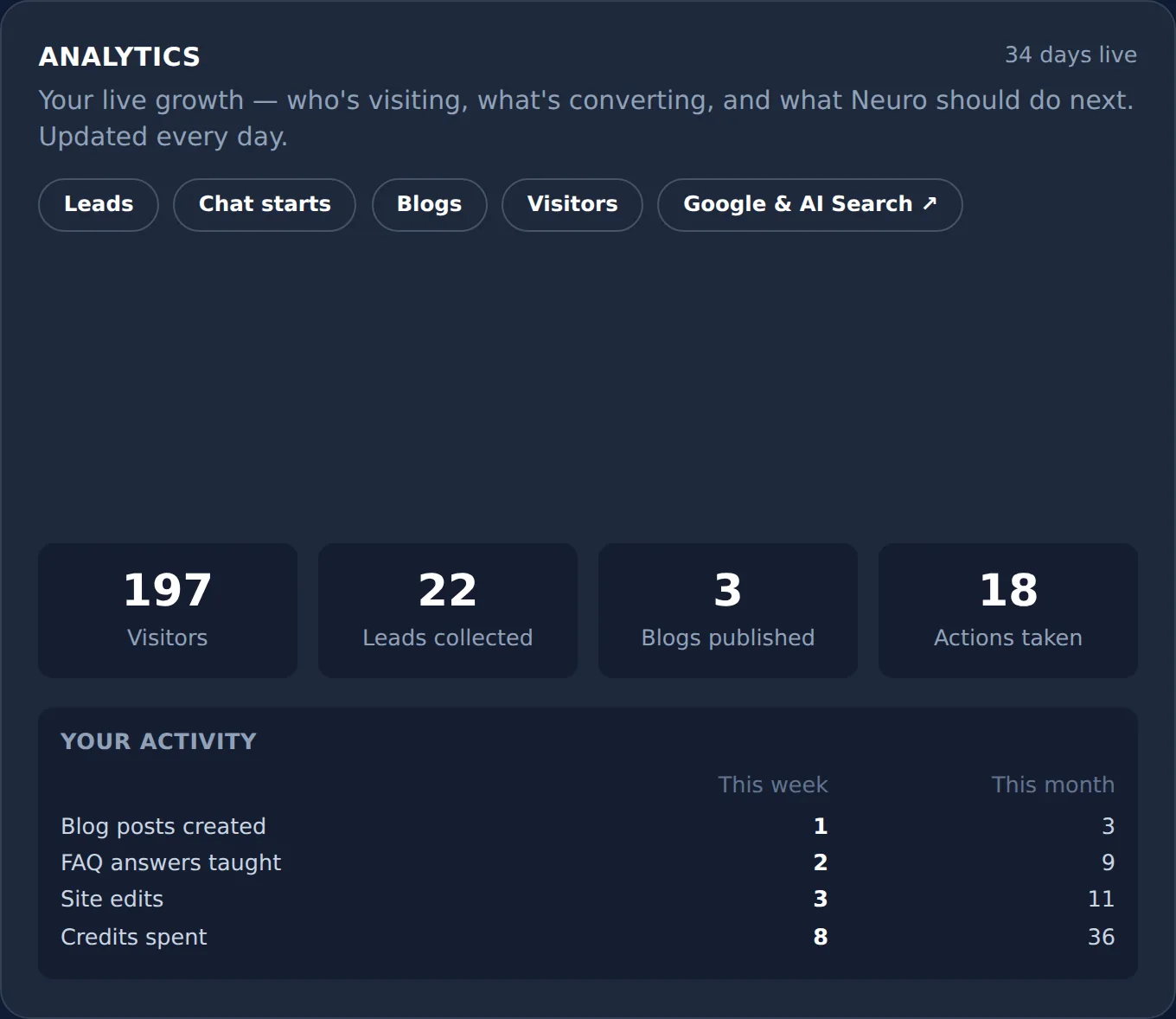
A visual read on how your site is performing — visitors, leads, and activity over time — so you build your next move on real numbers instead of a guess.
How it works:
- Open the chart to see day-by-day performance.
- Switch between metrics to see what's moving.
- Use what you see here to inform the Growth Brief and your weekly Momentum choices.
Your Growth Brief
The Strategy sub-tab's Growth Brief is your personal strategy memo — actionable insight about your industry, drawn from your own traffic and leads.
Why it matters: one clear decision a week, made from your real numbers, beats generic advice written for a business that isn't yours.
How it works:
- Neuro reviews your traffic, leads, reviews, and content activity.
- It picks the single highest-leverage move for right now — sometimes that move is "hold course."
- You get the reasoning plus specific actions to take.
- Neuro checks back against the same numbers next period and reports what actually changed.
Growth Playbook — two ways in
A library of guiding articles covering every Neuro feature, so you can build a complete picture of what each skill does and when to use it. It lives in two places on purpose: as its own tab inside Momentum for quick reference while you're planning your week, and here under Strategy as part of your bigger-picture toolkit — same guides, whichever door you use.
How it works:
- Browse the guide cards by topic, from either entry point.
- Open the one that matches whatever you're stuck on this week.
- Apply the single action it recommends.

What's in the Edit Site tab?
Open my site to edit
Clicking this opens your live site in edit mode, where you can change copy, photos, titles, and more directly on the page.
How it works:
- Click Open my site to edit.
- Click any headline, paragraph, or photo to change it.
- Hit Save — the change is live immediately, no rebuild or publish step.
Your Logo
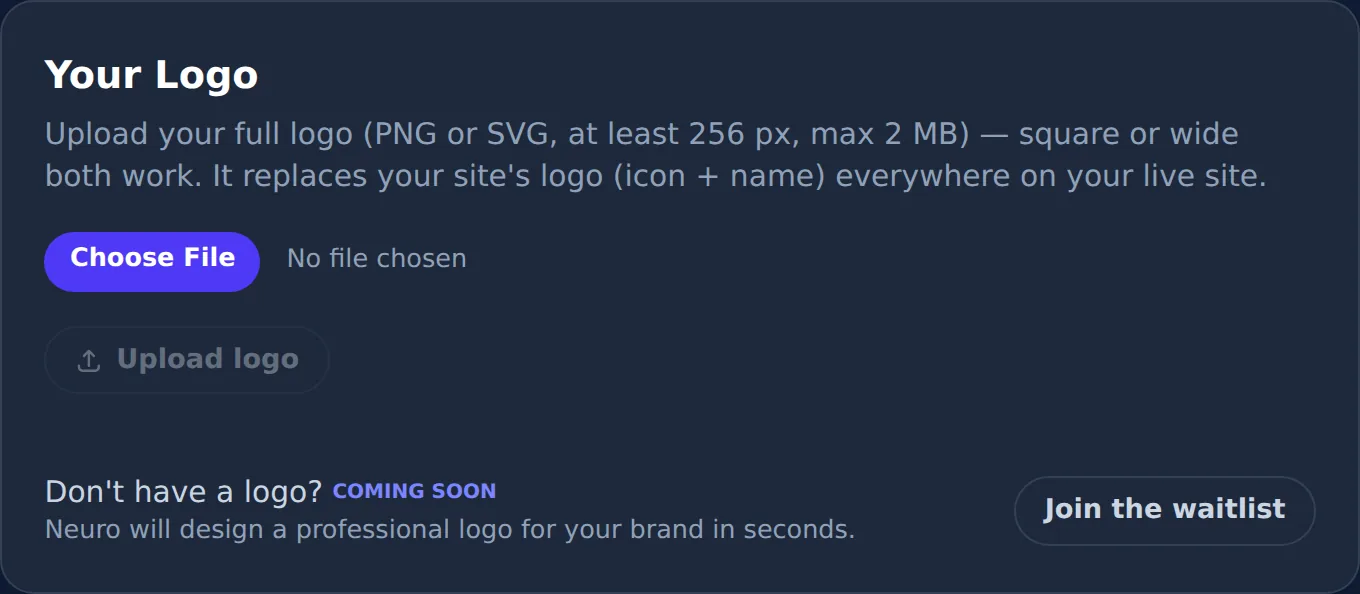
Upload your own logo, and it's applied across your site automatically. This card now lives on the Edit Site tab, alongside everything else that changes how your site looks.
How it works:
- Open the Edit Site tab.
- Click the logo upload control.
- Choose your file — it replaces the placeholder everywhere it appears.
Appearance
Two shortcuts that jump straight into your live editor with the right panel already open, instead of a separate in-dashboard picker.
How it works:
- Click 🖼 Upload logo or 🎨 Colour theme.
- Your live site opens in edit mode with that panel ready.
- Preview a palette against your real content, then apply — it updates site-wide instantly.
What are the bottom tools for?
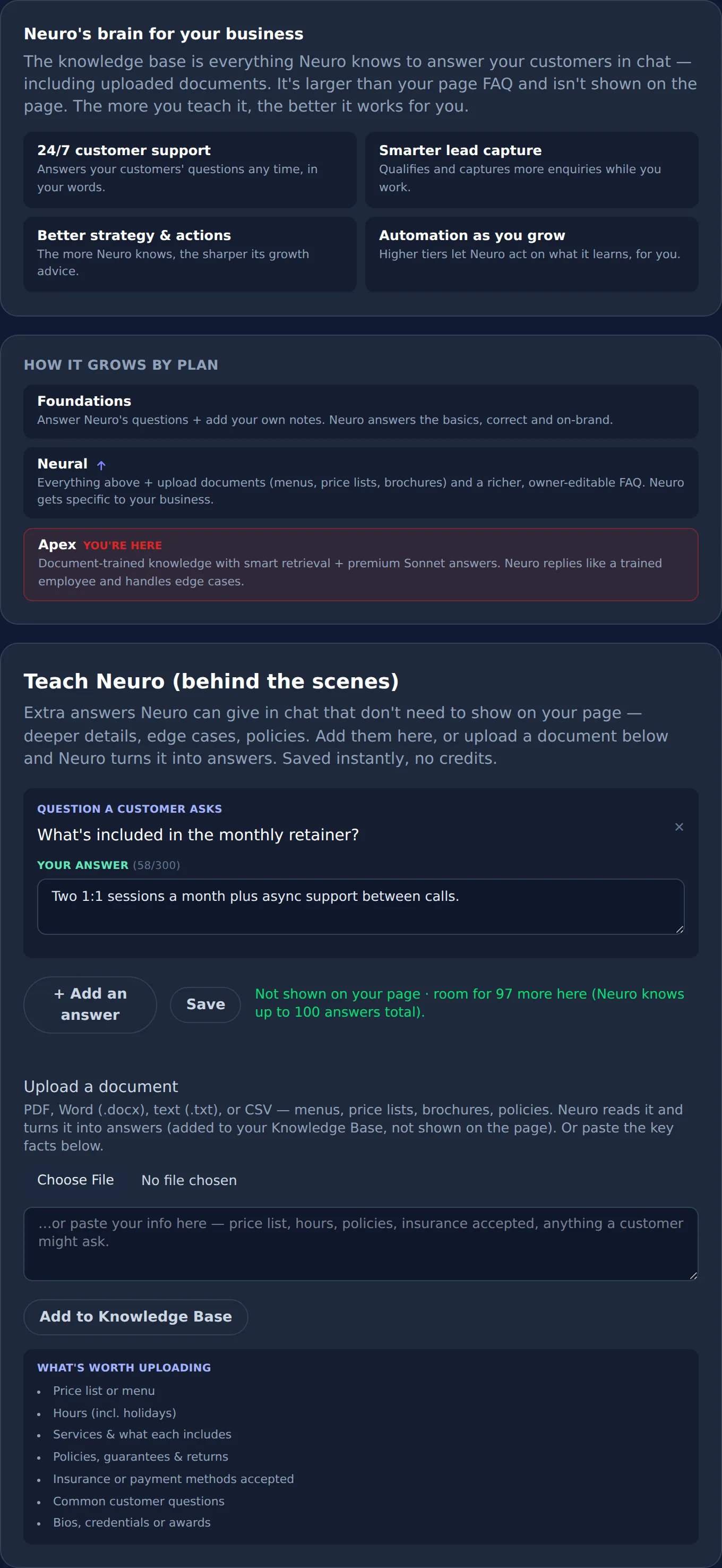
Knowledge Base
Add Q&As and upload files so Neuro can answer customer questions accurately — and build strategy recommendations from what it learns.
Why it matters: fifteen minutes of teaching pays off on every chat your site has, for as long as your site is live.
How it works:
- Add Q&As manually, or upload a PDF, doc, or text file.
- Neuro suggests questions worth answering, based on your profile.
- Everything you save grounds both visitor chat answers and your Growth Brief.
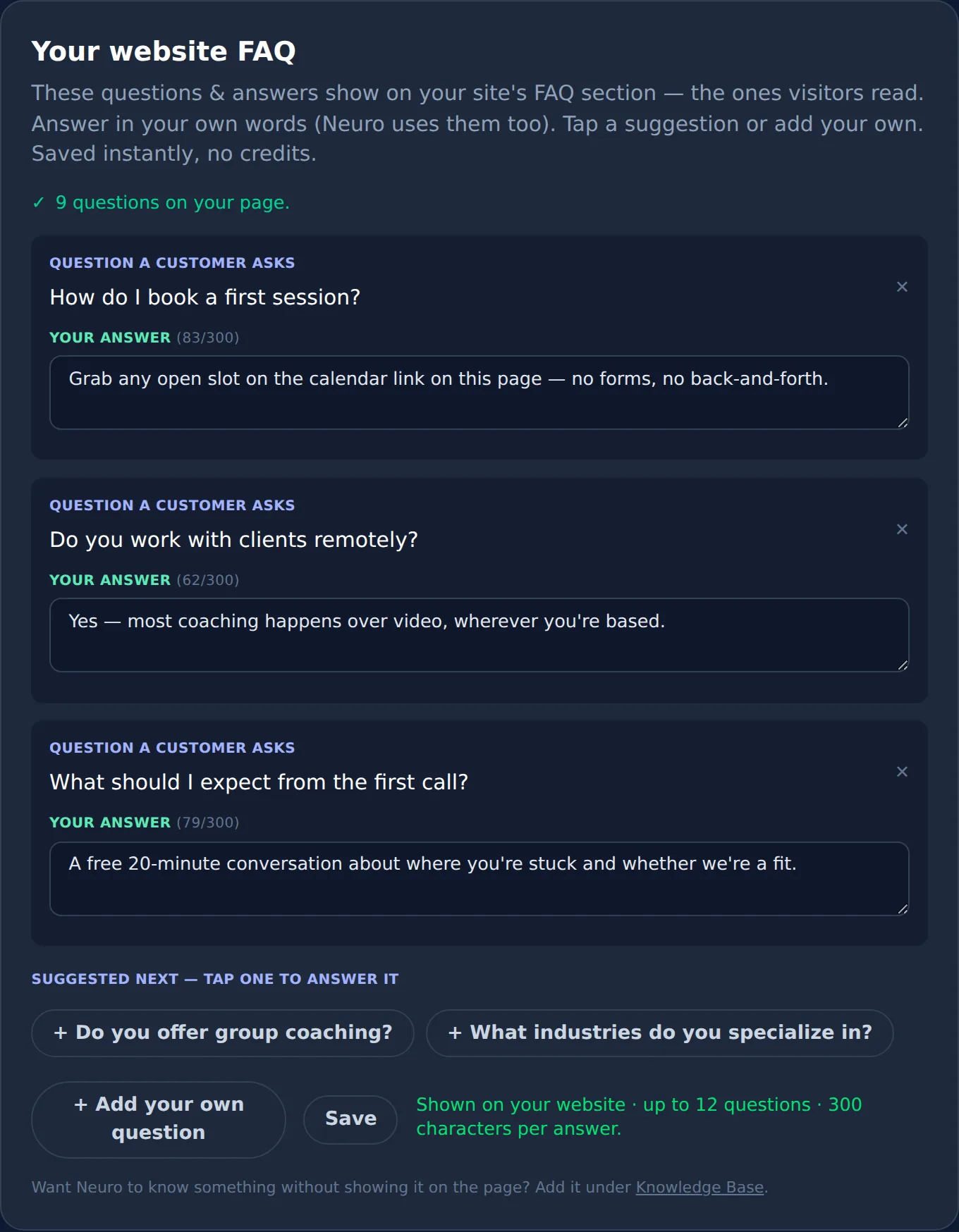
FAQ
Pick from the questions Neuro drafted for you, or write your own — either way, they appear as a public FAQ section on your Neuro site.
How it works:
- Review Neuro's suggested questions, or write your own.
- Choose which ones show on your live page (capped by your plan tier).
- Save — they appear in your site's FAQ section immediately.
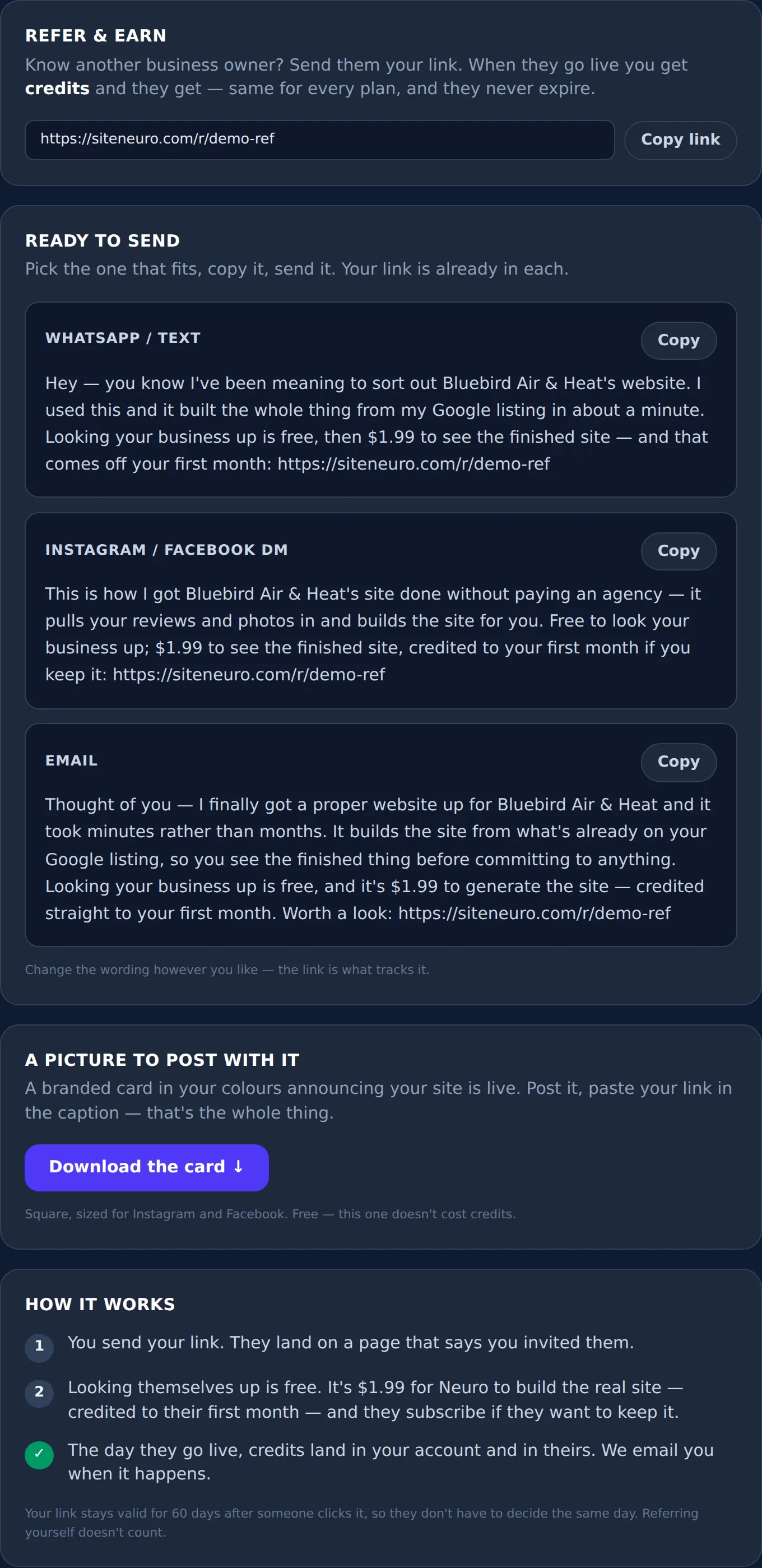
Refer & Earn
Grab your unique referral link and share it with your network — a win-win for both of you.
How it works:
- Copy your referral link.
- Share it with other business owners in your network.
- Earn free credits automatically when someone you referred goes live.
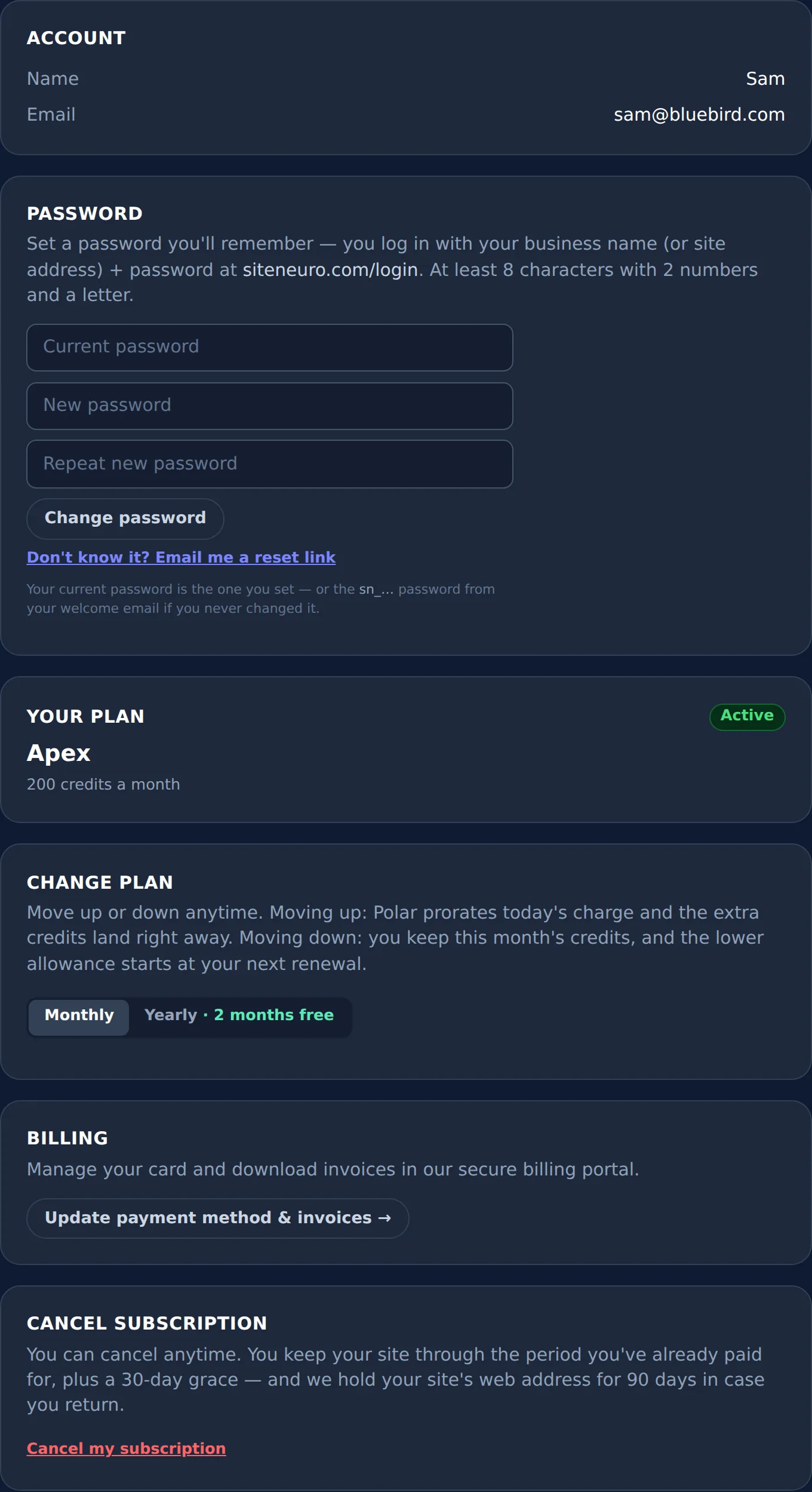
Account
Reset your password and review your account details.
How it works:
- Open the Account tab.
- Reset your password, or review your billing and plan details.
- Change your plan up or down any time — it's prorated instantly.
Help
See FAQs about the Neuro service, or open a ticket straight to customer support.
How it works:
- Check the Help FAQ list first — most questions are answered there.
- If not, open a support ticket describing your issue.
- The SiteNeuro team follows up directly.
Domain Setup
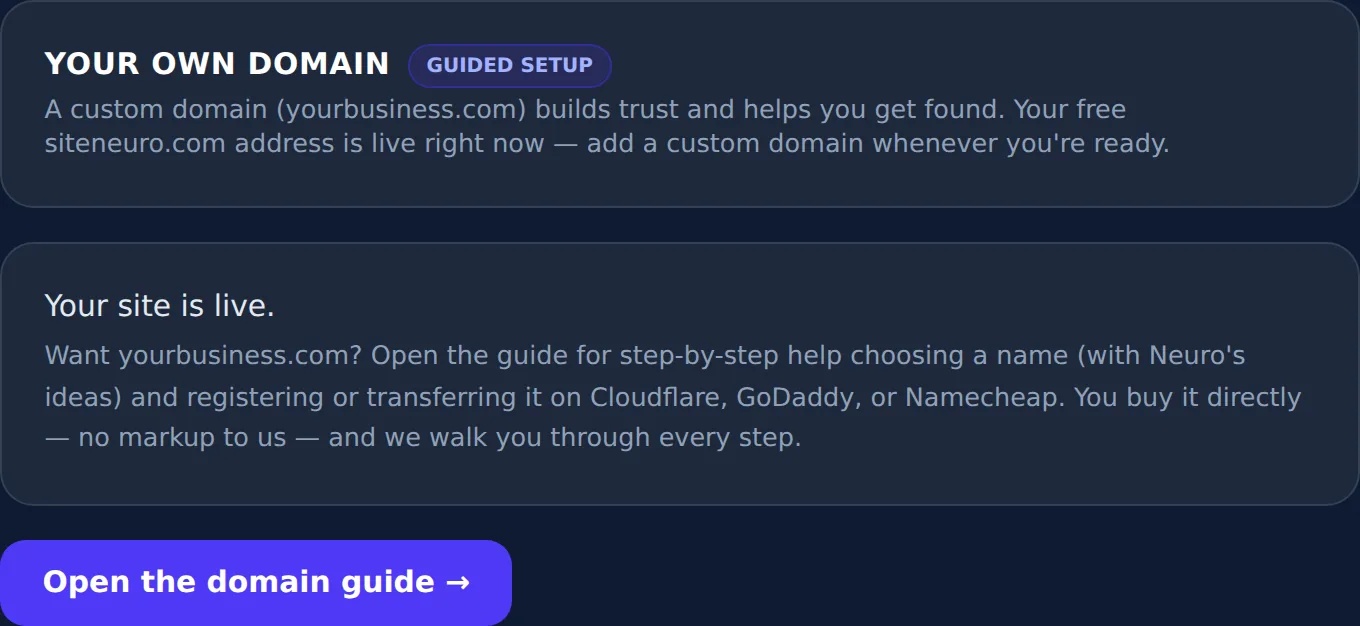
Complete guidance for transferring your own domain or buying a new one, fully integrated with SiteNeuro hosting in as little as five minutes — no technical skill required.
How it works:
- Choose to connect a domain you already own, register a new one, or let Neuro suggest three options.
- Follow the guided steps — add the records shown, or complete registration.
- Neuro verifies everything automatically in the background.
- Your domain goes live, often within minutes, with an email confirmation when it's done.
Straight answers
Do I need to read this whole guide before I start?
What do credits actually pay for?
How do I know what to do first?
Can I change any of this later?
Where do I go if something doesn't match what I see?
Ready to put this to work?
Pick how much help you want. Both start with a free look at your site.
Apex Concierge $119/mo
Your website, plus a growth team every week.
- Your site in your inbox within 2 hours
- 30-minute setup call with a specialist
- Answers visitors, captures leads
- Drafts blog, social and newsletter
Essential $39/year
Just the website, done properly.
- Built from your Google or LinkedIn
- Set up for Google and AI search
- Hosting and security included
- Unlimited edits, no extra cost
Rated Excellent on TrustpilotGlobal review platform · 300M+ reviews