How Neuro Works
How to Update Your Website Yourself (No Developer, No Weekend)
Can you update your website yourself? Yes. Most modern websites let you change text, photos, hours and prices directly on the page, then save. The hard part isn't the tool. It's knowing what to update, and making it a habit.
Here's a familiar story.
Your hours changed in March.
It's now October. Your website still says the old hours.
You know. You've meant to fix it. But it means emailing the person who built the site, or logging into something you haven't opened in a year.
So it waits.
And every week it waits, a customer shows up to a locked door.
This is part 2 of our "Beyond the Launch" series. Part 1 covered what happens after your website goes live.
Why small business websites go out of date
It's rarely laziness.
It's friction.
- "I'd have to ask the developer." And wait. And maybe pay.
- "I don't remember the password." Or which company even hosts it.
- "I'm scared I'll break something." One wrong click and the whole page looks wrong.
- "It's a weekend job." So it goes on the list behind everything else.
Here's the thing.
A website that's hard to change is a website that won't be changed.
So before you fix the content, fix the friction.
What actually needs updating (and what doesn't)
You don't need to touch your website every day.
But some things go stale fast — and they're exactly the things customers check.
Update immediately when they change:
- Opening hours (and holiday hours)
- Phone number, email, address
- Prices and services you've added or dropped
- Anything that's sold out, paused or seasonal
Refresh every month or two:
- Photos (new work, new team members, the new storefront)
- Your best recent reviews
- One line about what's new this season
Leave alone unless something's wrong:
- Your page layout
- Your main headline (if it's working)
- Your colours and logo
Notice the pattern?
The details customers act on need to be right. The design can wait.
Your 15-minute monthly website check
Put this in your calendar. First Monday of the month.
- Open your site on your phone. That's how most customers see it.
- Check hours, phone and address. Do they match your Google Business Profile exactly?
- Tap every button. Does "Call," "Book" or "Contact" actually work?
- Scan your services and prices. Anything outdated?
- Swap in one new photo of recent work or your team.
- Add one fresh review if you've had a good one.
That's it.
Fifteen minutes. Twelve times a year.
And your site will be more current than most of your competitors'.
Why matching details everywhere matters for Google and AI search
This one surprises people.
Your growth partner
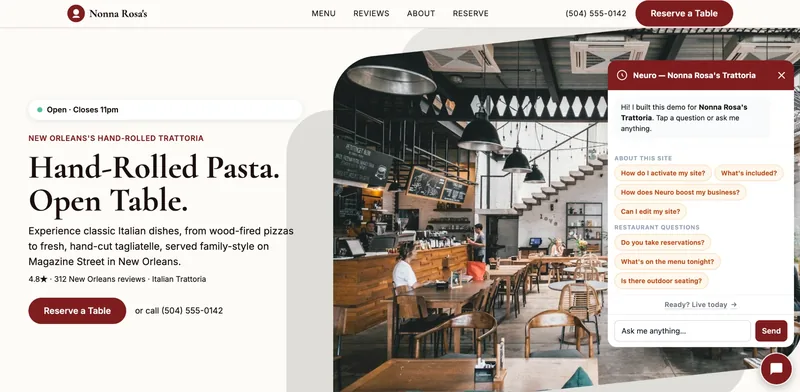
A website is the start. Neuro keeps it working.
- Built from your Google or LinkedIn
- Answers visitors, captures leads
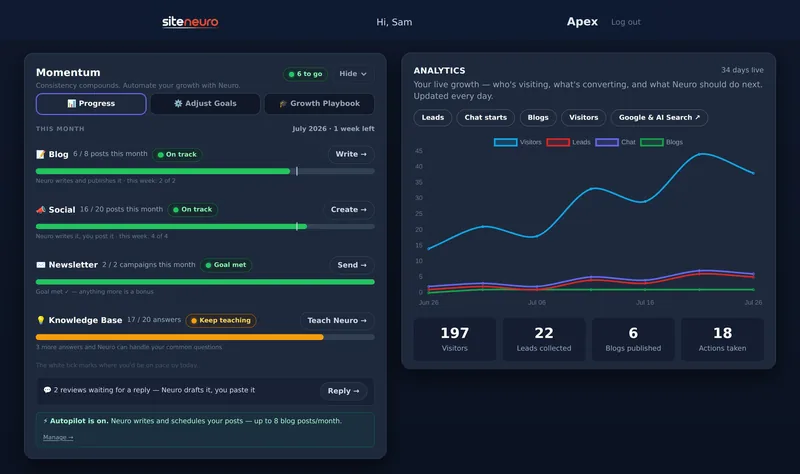
- Drafts blog, social and newsletter
- Nothing goes out until you approve it

If your website says you close at 6, but Google says 5, and Facebook says 7... search engines and AI assistants don't know which one to trust.
When tools like ChatGPT or Google's AI answers describe your business, they pull from what they can find online. Conflicting details make you look less reliable — to them and to customers.
So when something changes, update it everywhere on the same day:
- Your website
- Your Google Business Profile
- Your social profiles
More on this in how to show up on Google when customers search your business.
How to edit your site without a developer
Whatever your website runs on, the goal is the same: click the thing, change the thing, save.
Most website builders — Wix, Squarespace, WordPress with a page builder — work this way once you're logged in. If your site was hand-coded by a developer, you may genuinely need them for changes. That's worth knowing before you need an urgent fix.
Here's how it works in Neuro, since that's what we know best.
Change text and photos on the page itself
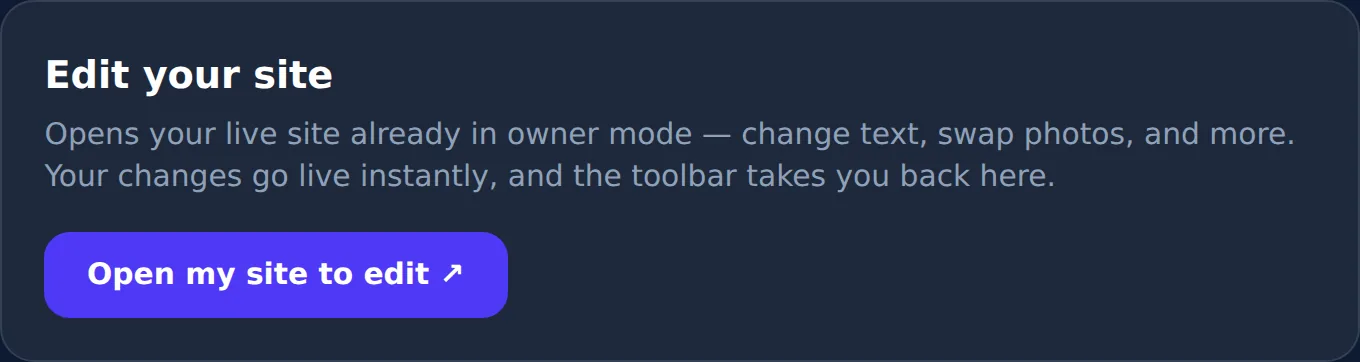
In your dashboard, open the Edit Site tab and click Open my site to edit.
Your live site opens in edit mode.
- Click any headline, paragraph or photo.
- Change it.
- Hit Save.
The change is live immediately. There's no separate rebuild or publish step to forget.
Swap your logo once, everywhere
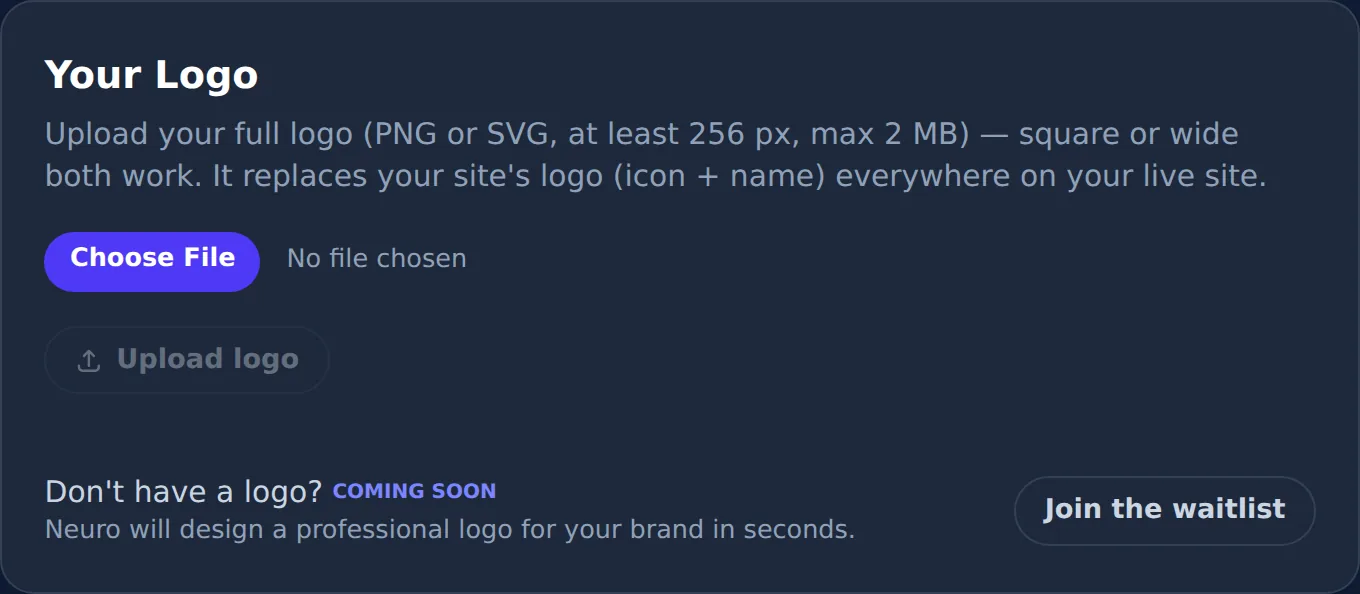
Upload your logo from the same Edit Site tab, and it replaces the placeholder everywhere it appears on your site.
Try a new colour theme without breaking anything
The Colour theme shortcut opens your site with the theme panel ready. You preview a palette against your real content, then apply it — and it updates across the whole site.
That's the bit that removes the fear.
You see the change on your real page before anyone else does.
When you should call a professional
Doing it yourself isn't always the right answer.
Bring in help when:
- You're changing what the business is — new name, new brand, new main service.
- You need something the site doesn't do yet, like online payments or a custom booking system.
- Your site is slow, broken on phones, or very outdated. That's a redesign, not an update — and a different budget conversation.
For everything else — hours, prices, photos, reviews, a new service line — you shouldn't need to wait for anyone.
What's next in this series
Next up in "Beyond the Launch": how to post on social media every week without hiring anyone.
Frequently asked questions
How do I update my website myself?
How often should I update my small business website?
Can I update my website without a developer?
Will updating my website help my Google ranking?
What should I check on my website every month?
Is it risky to edit my own website?
Ready to put this to work?
Pick how much help you want. Both start with a free look at your site.
Essential $39/year
Just the website, done properly.
- Built from your Google or LinkedIn
- Set up for Google and AI search
- Hosting and security included
- Unlimited edits, no extra cost
Apex Concierge $119/mo
Your website, plus a growth team every week.
- Your site in your inbox within 2 hours
- 30-minute setup call with a specialist
- Answers visitors, captures leads
- Drafts blog, social and newsletter